How to remix and publish a Framer template, step by step
NS. Studio · 2026-10-06
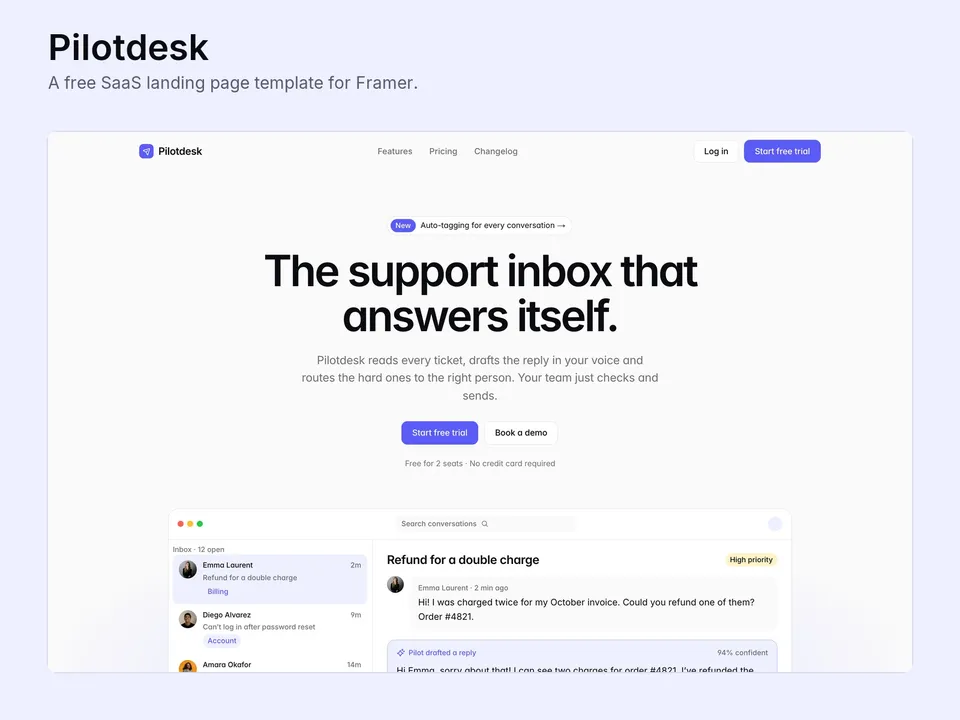
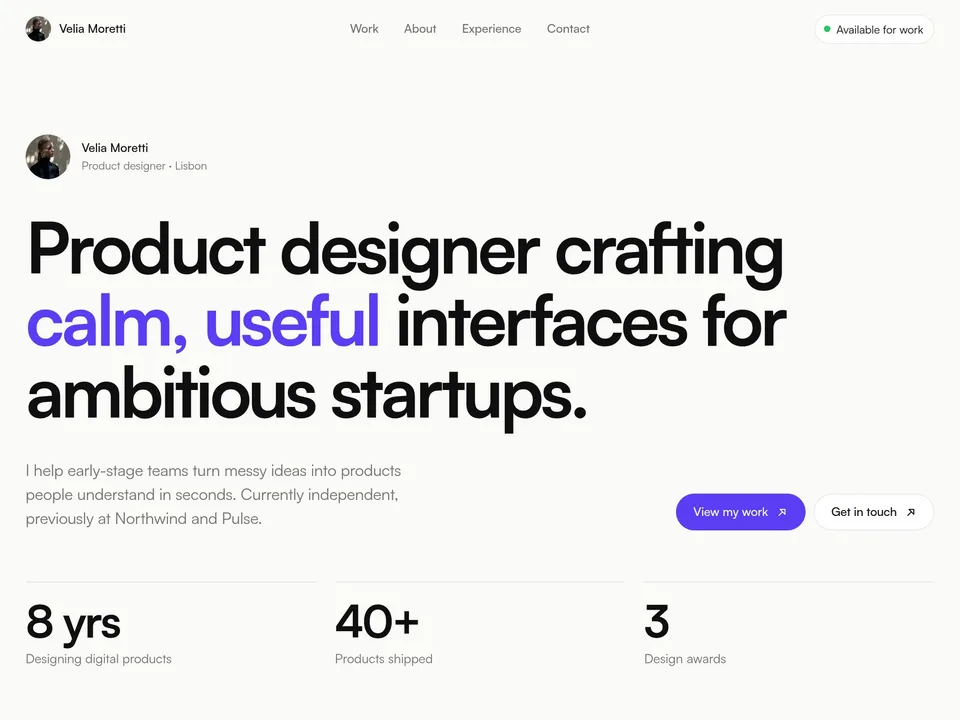
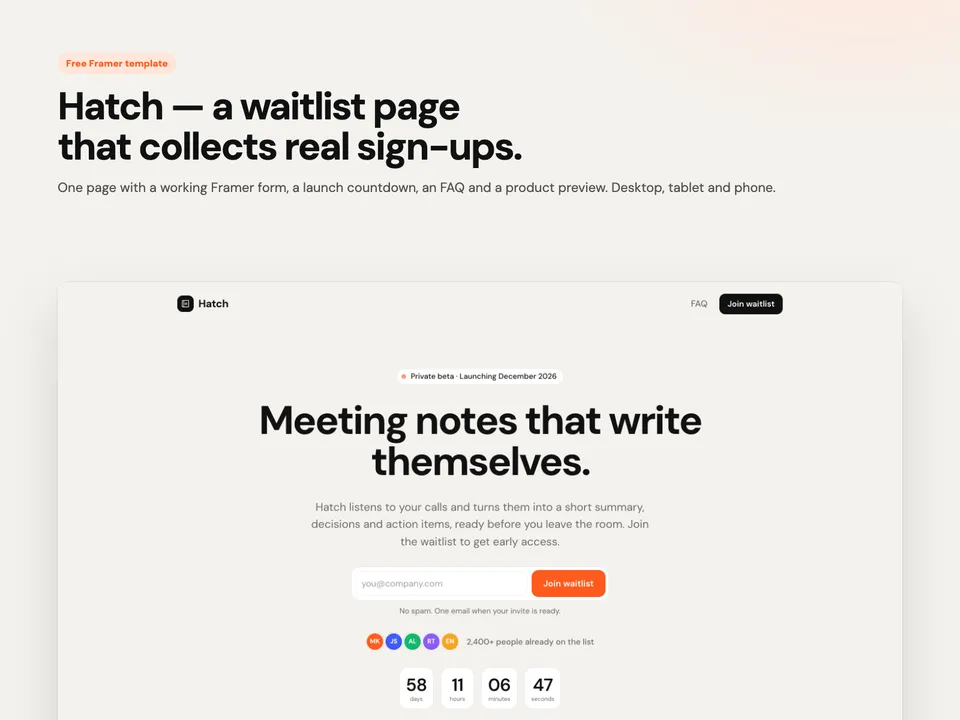
A Framer template is not a theme you install. It is a complete Framer project, and "remixing" it gives you your own copy to change however you like. This guide walks through the whole process, from the remix link to a live site, using any NS. Studio template as the example.
1. Get the remix link
Every template has a remix link. For free templates it's the "Remix" button on the Framer Marketplace. For paid templates, the link arrives in your Gumroad receipt email right after checkout and stays on your Gumroad library page, so you can come back to it later.
Before you get either, open the template's live demo and click through every page. What you see there is exactly what you'll get.
2. Remix it into your workspace
Open the remix link while you're logged in to Framer (a free account is enough). Framer asks which workspace to copy the project into. Pick one and the full project opens in the editor: every page, component, CMS collection and style.
It is now your project. Nothing you change affects the original, and the original can't change yours.
3. Change the styles first
Before you touch any text, open the Assets panel and look at the colour and text styles. Good templates are built on shared styles, so changing one colour updates every button, link and background that uses it. Do this first:
- Set the accent colour to your brand colour.
- Swap the heading and body fonts in the text styles.
- Check the result on the tablet and phone breakpoints, not only on desktop.
4. Replace the content
Double-click any text on the canvas to edit it. Click an image and use "Replace" in the right panel. For anything that repeats, like projects, blog posts, trips, coaches or changelog entries, open the CMS from the top-left menu. Edit the existing items or add your own, and the pages that list them update by themselves.
Interactive pieces, like a calculator, a map or a countdown, are code components. Select one and its settings appear in the properties panel on the right. You never need to open the code.
5. Check SEO and the small stuff
- Site settings: title, description, favicon and social image.
- Each page's own SEO title and description, especially for CMS detail pages.
- Forms: set where submissions should go.
- The 404 page: make it point back to your home page.
6. Publish
Click Publish. On Framer's free plan your site goes live on a free framer.website address straight away, which is perfect for checking everything on a real phone. To use your own domain, add a Framer site plan for that project and connect the domain in Site settings → Domains.
Common questions
Can I use one template for a client?
Yes. Remix it into the client's workspace or transfer the project once it's done.
Will updates to the template reach my copy?
No. A remix is a snapshot, which also means nothing can break your site later.