About Flythrough
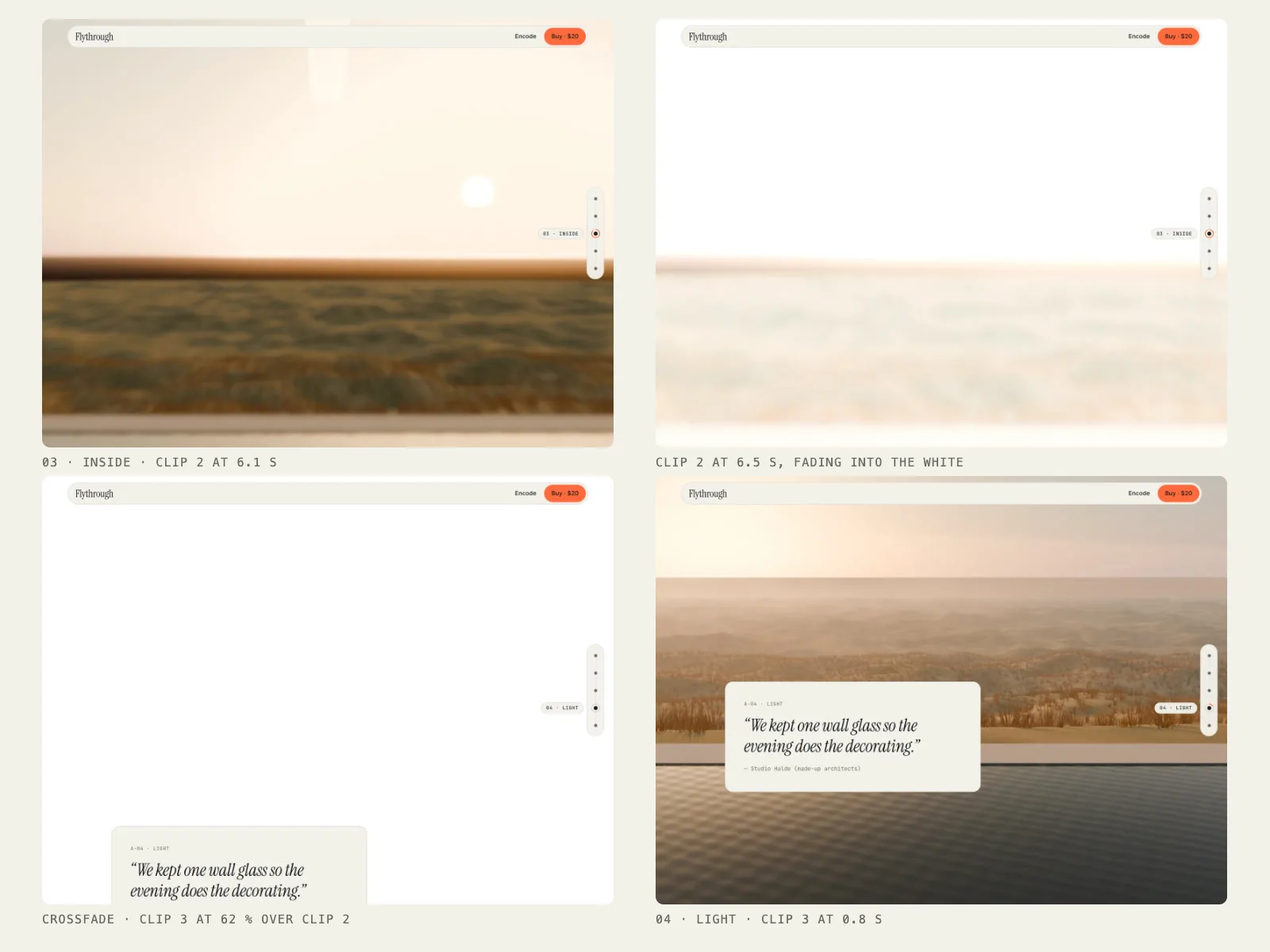
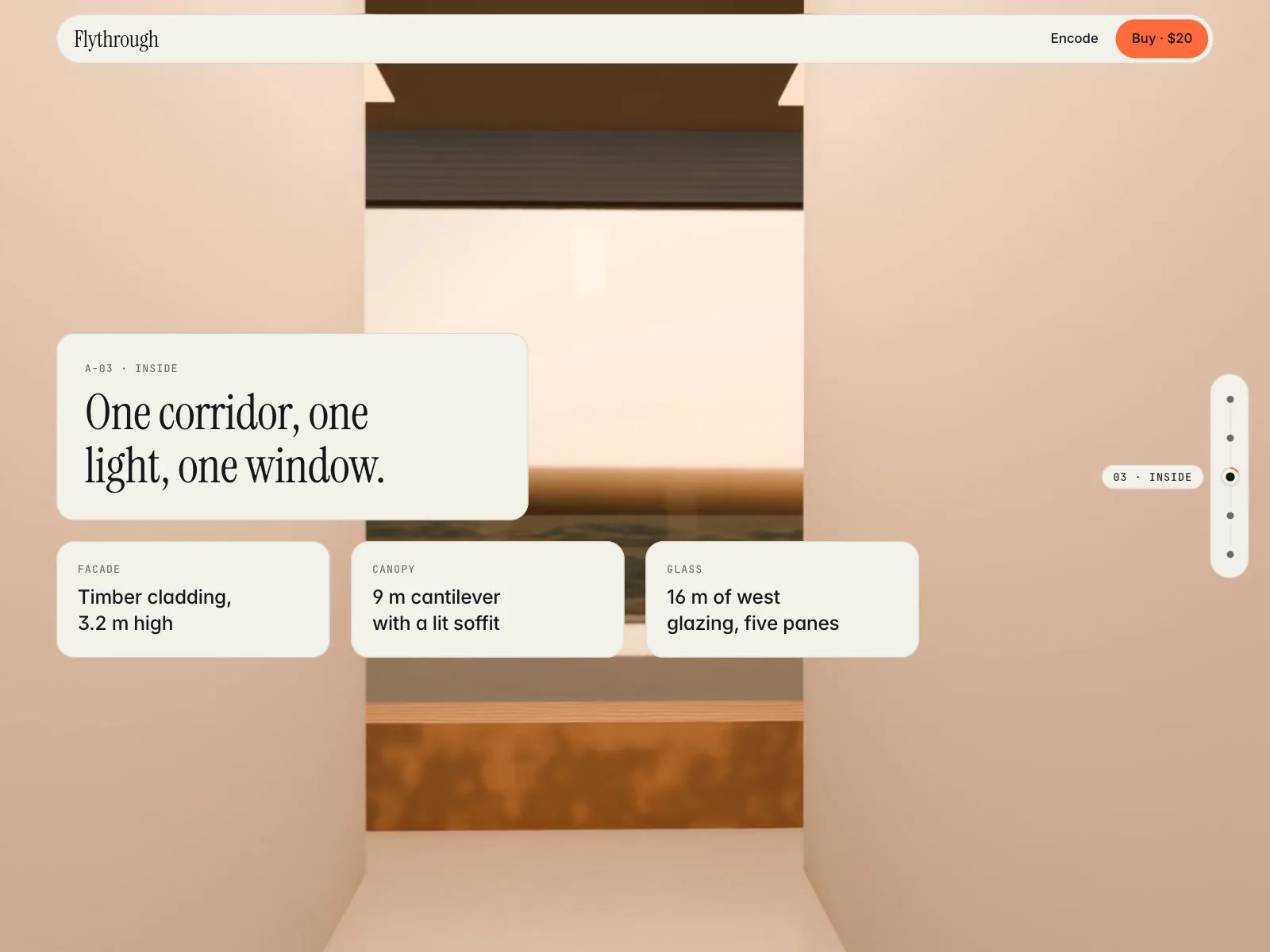
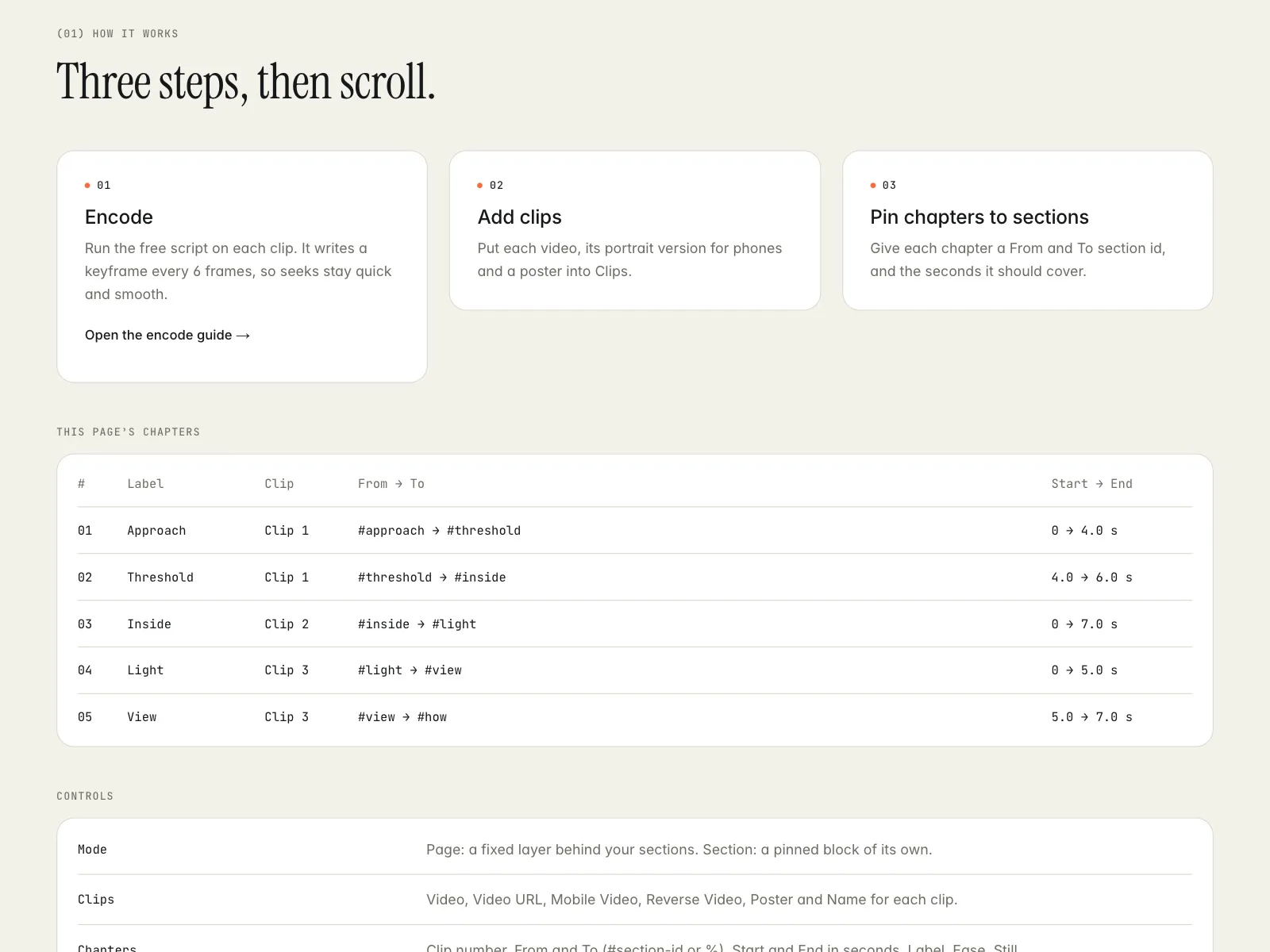
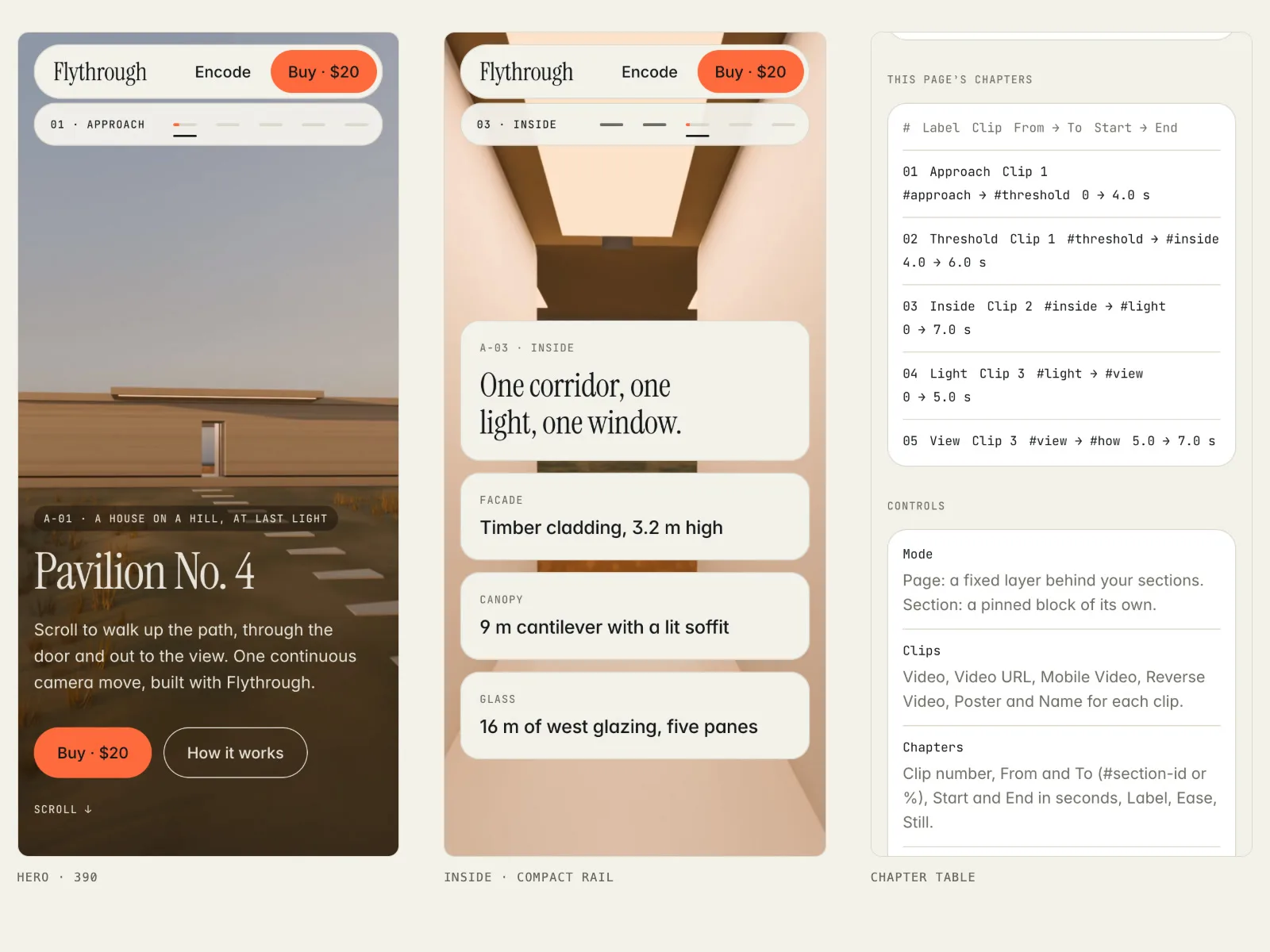
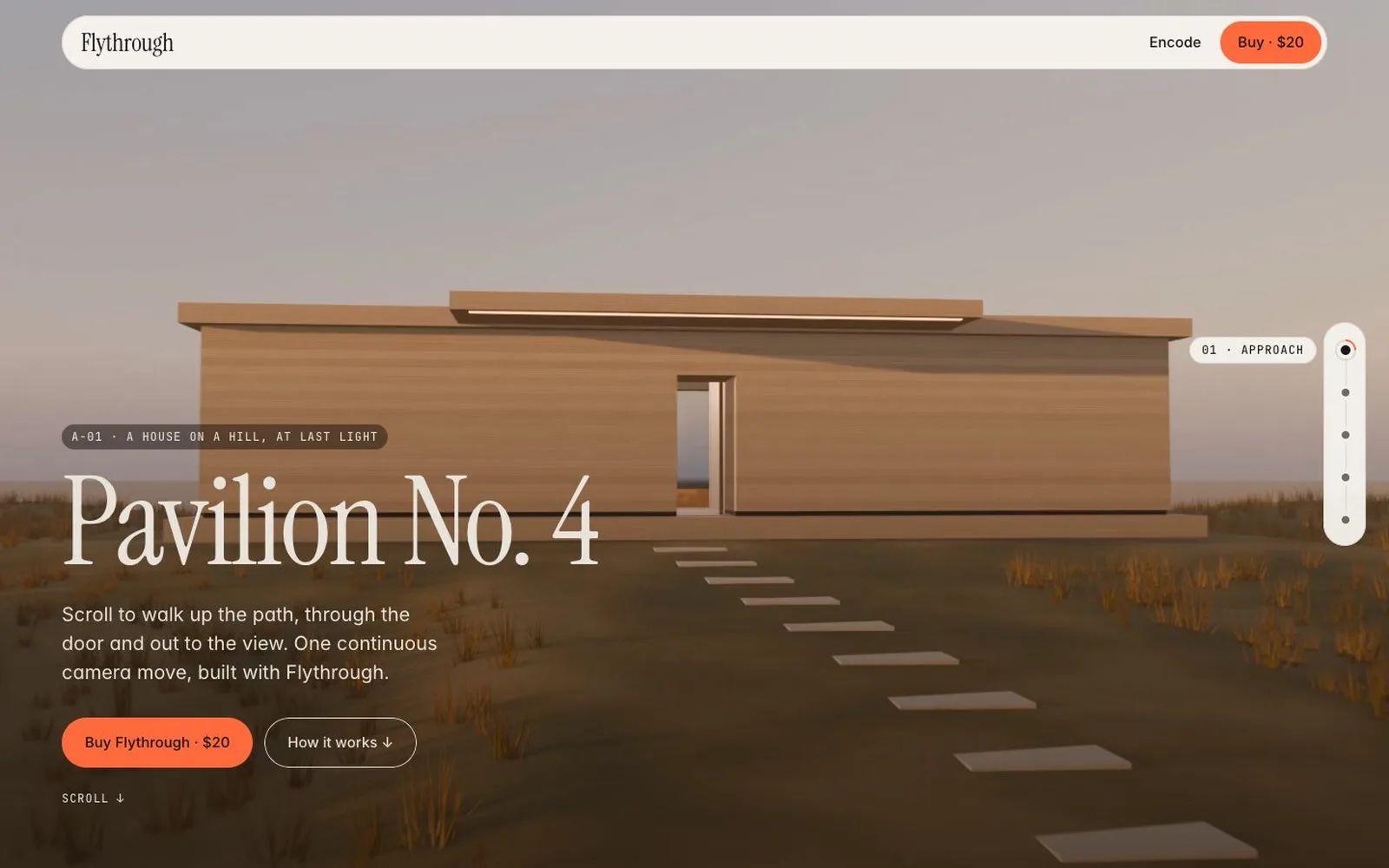
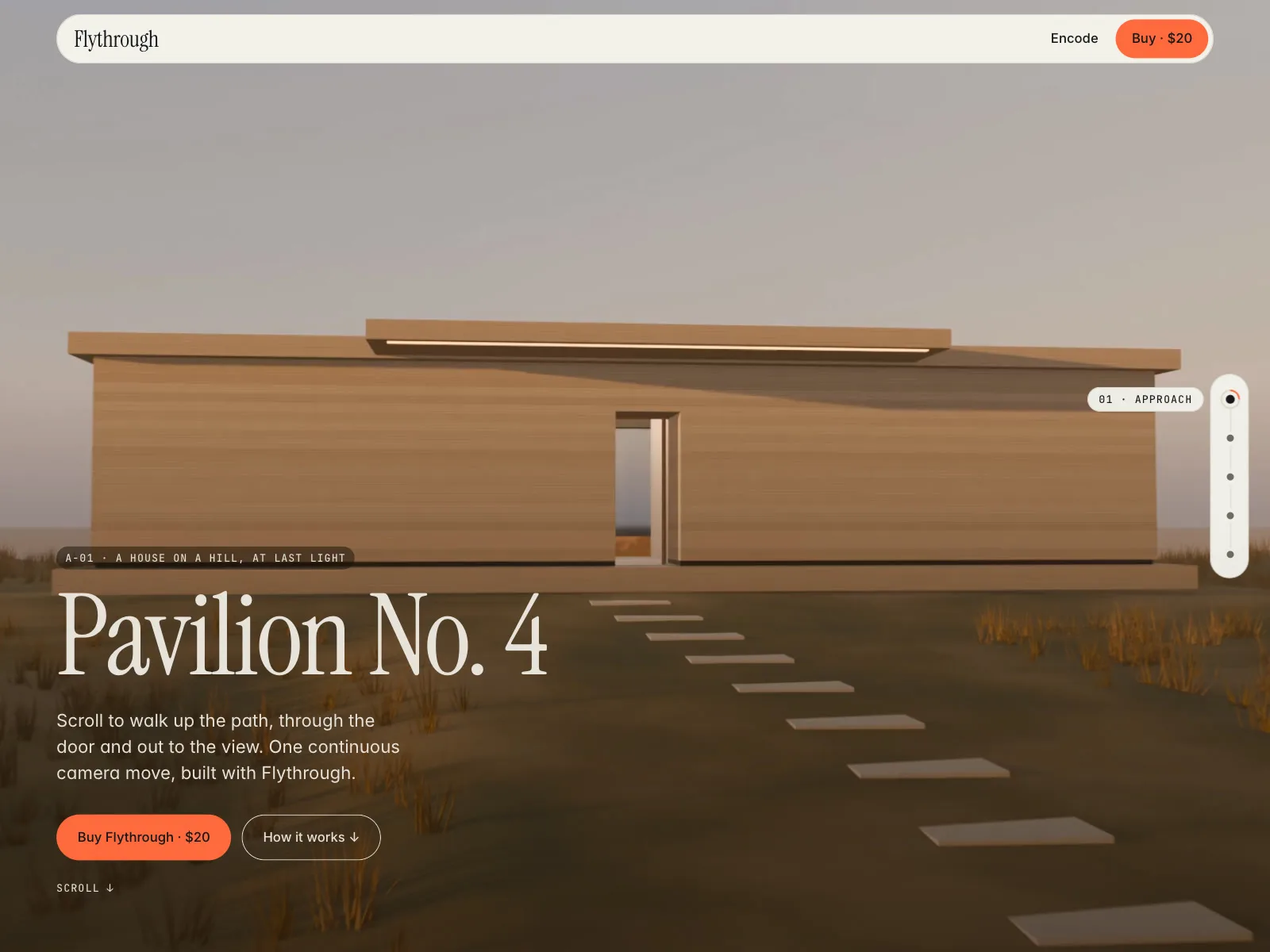
Flythrough is a scroll-scrubbed video component for Framer that tells one story across several clips. Each chapter is pinned to your page's own sections: from #approach to #threshold the visitor scrubs through clip 1, from #inside to #light through clip 2, and so on. Between clips a scroll-linked crossfade hands one video to the next, so a long camera move can be built from short clips. A chapter rail shows where the visitor is and jumps to any chapter. The demo is a five-chapter walk at golden hour up to a timber-clad house, through the door and out to a pool and the view at sunset.
How it works
- Encode: run the free flythrough-encode.sh script on each clip. It writes a keyframe every 6 frames, so every seek stays short, plus an optional 720 × 1280 phone version and a poster
- Add clips: put each video (upload or URL), its portrait phone version and a poster into Clips
- Pin chapters to sections: give each chapter a clip number, a From and To section id (or a % in Section mode) and the seconds it should cover
Flythrough (the component)
- Page mode: a fixed layer behind your sections. Section mode: a pinned block of its own, with From and To in %
- Chapters: clip, From → To, Start → End seconds, Label, Ease (Linear or Ease In Out), and a Still image for reduced motion. Several chapters can share one clip
- Scroll-linked crossfade: the next clip fades in as you scroll across the chapter boundary, over a distance you set (Fade, px). Scroll back and it fades back
- Smoothing: the video time is eased toward the scroll position (ms, 0 = direct). Page scroll itself is not hijacked, so anchor links, Framer scroll effects and the keyboard keep working
- Trigger: where the playhead sits in the viewport (50% = the middle)
- Chapter rail: left, right, bottom or off. Each chapter is a button with its label and a progress ring; click it (or Tab to it and press Enter) to jump there. On phones it becomes a compact bar under the nav. Colours, font and offset are controls
- Phones: below the Mobile Breakpoint each clip switches to its Mobile Video and Mobile Poster
- Fit (Cover or Contain), Focus X/Y, Tint over the video, Radius, Background
- Keyframe Check (canvas only): with Show Warnings on, the canvas measures how fast each clip seeks and labels it Smooth, OK or Re-encode, with setup warnings. It never shows on the live site
- Preview slider to scrub the canvas through the chapters while you design
- At most two videos load a source at once; clips further along wait until they are next. The engine runs only while the layer is near the viewport and the tab is visible
Also included
- Flythrough Loop: a lazy ambient loop for the quiet sections between chapters. It loads only when near the viewport (Load Margin), plays while in view and pauses outside
- flythrough-encode.sh (free, ffmpeg): keyframe every N frames, --max-smooth (a keyframe on every frame), --mobile portrait crop or a separate portrait source, posters, image-sequence input, --reverse for the experimental Glide engine. Handbrake settings are on the guide page for people who prefer an app
- The demo site: home with the five-chapter flythrough, a How it works section with the chapter table and every control, an /encode guide with the script, the measured seek table, a 404 page, and desktop, tablet and phone layouts
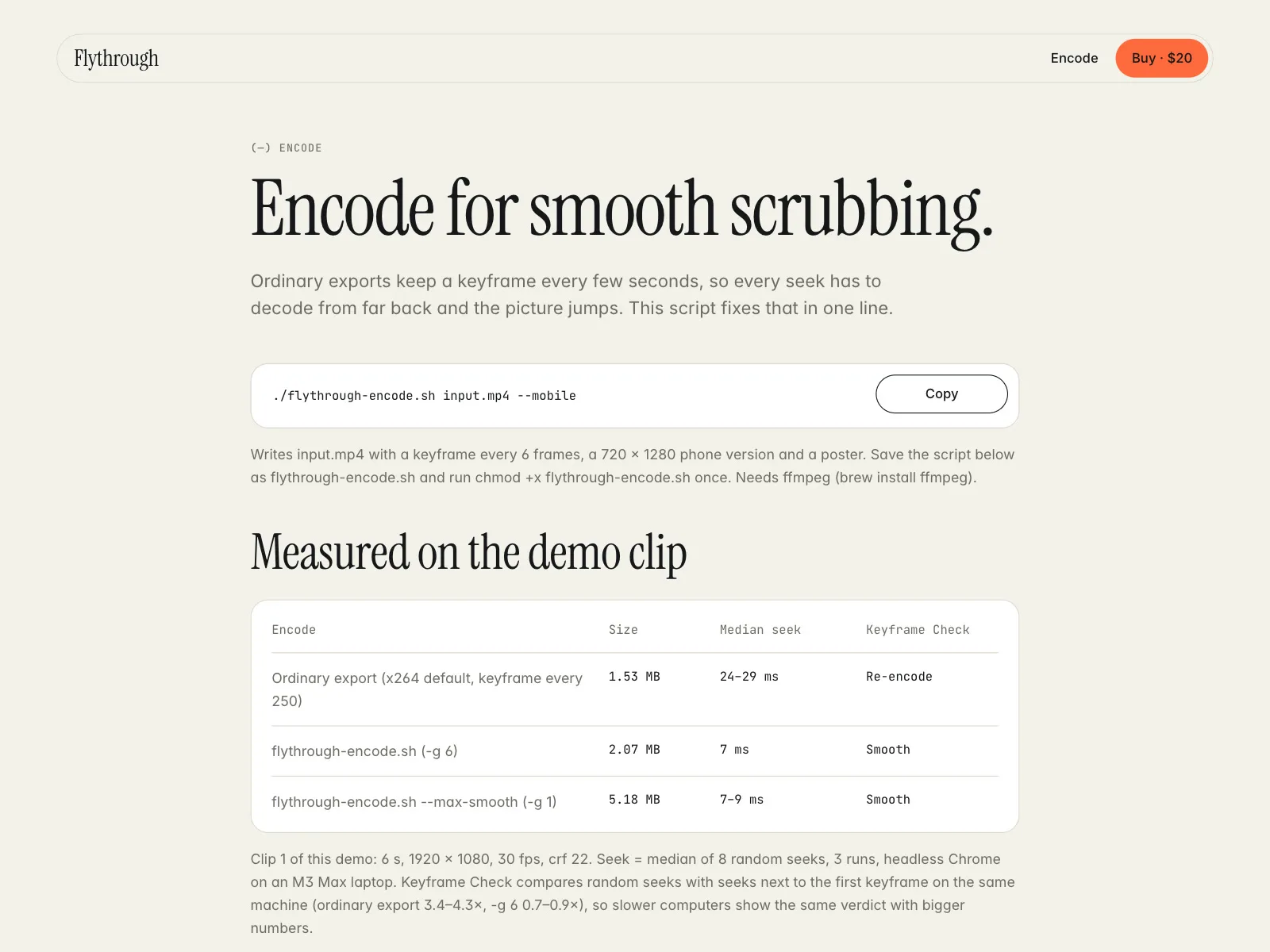
Measured on the demo's clip 1 (6 s, 1920 × 1080, 30 fps)
- Ordinary export: 1.53 MB, median seek 24–29 ms, Keyframe Check says Re-encode
- flythrough-encode.sh (keyframe every 6 frames): 2.07 MB, 7 ms, Smooth
- flythrough-encode.sh --max-smooth: 5.18 MB, 7–9 ms, Smooth
Good to know
- Clips must be re-encoded with frequent keyframes, or scrubbing jumps. The free encode script does it in one line; Keyframe Check on the canvas tells you if a file still needs it
- Expect about 1.6–4.9 MB per 1080p clip after encoding, depending on length and the keyframe setting
- iPhone and iPad scrubbing is not frame-perfect: Safari seeks slower than desktop browsers, so the picture can lag behind a fast flick
- The Glide engine (plays toward the target instead of seeking, needs Reverse clips) is experimental and off by default. Auto uses Seek
- Video only, H.264 MP4. No image sequences, and no audio: clips play muted
- Visitors who ask for reduced motion see the chapter stills or posters, crossfading per chapter, instead of video
- Text is not part of the video. Your copy lives in normal Framer sections over the layer, so it stays selectable, translatable and indexable
- In Page mode the layer fades out as the section after the last chapter enters the viewport
- The demo footage is our own Blender render of a made-up house, and it is included in the remix. The studio and figures in the demo are made up